

Activate Pro or Business on Commercial Edition Commercial Edition
Pro and Business licenses activate on one workspace. Every other workspace on the same instance stays on the Free plan.
Pro and Business run on the Commercial Edition, so your instance needs to reach Plane to check the key.
Before you start
- You are running the self-hosted Commercial Edition.
- You are an Admin of the workspace you want to activate.
- Your instance can reach
https://prime.plane.soon port 443. - You bought the plan in the Prime portal and can sign in there with the same email address. You buy self-hosted plans in the portal, not in the app.
Activate your license
Sign in to the Prime portal with the email address you bought the plan with.
Your licenses are listed with their plan, status, seat count, and next invoice date.
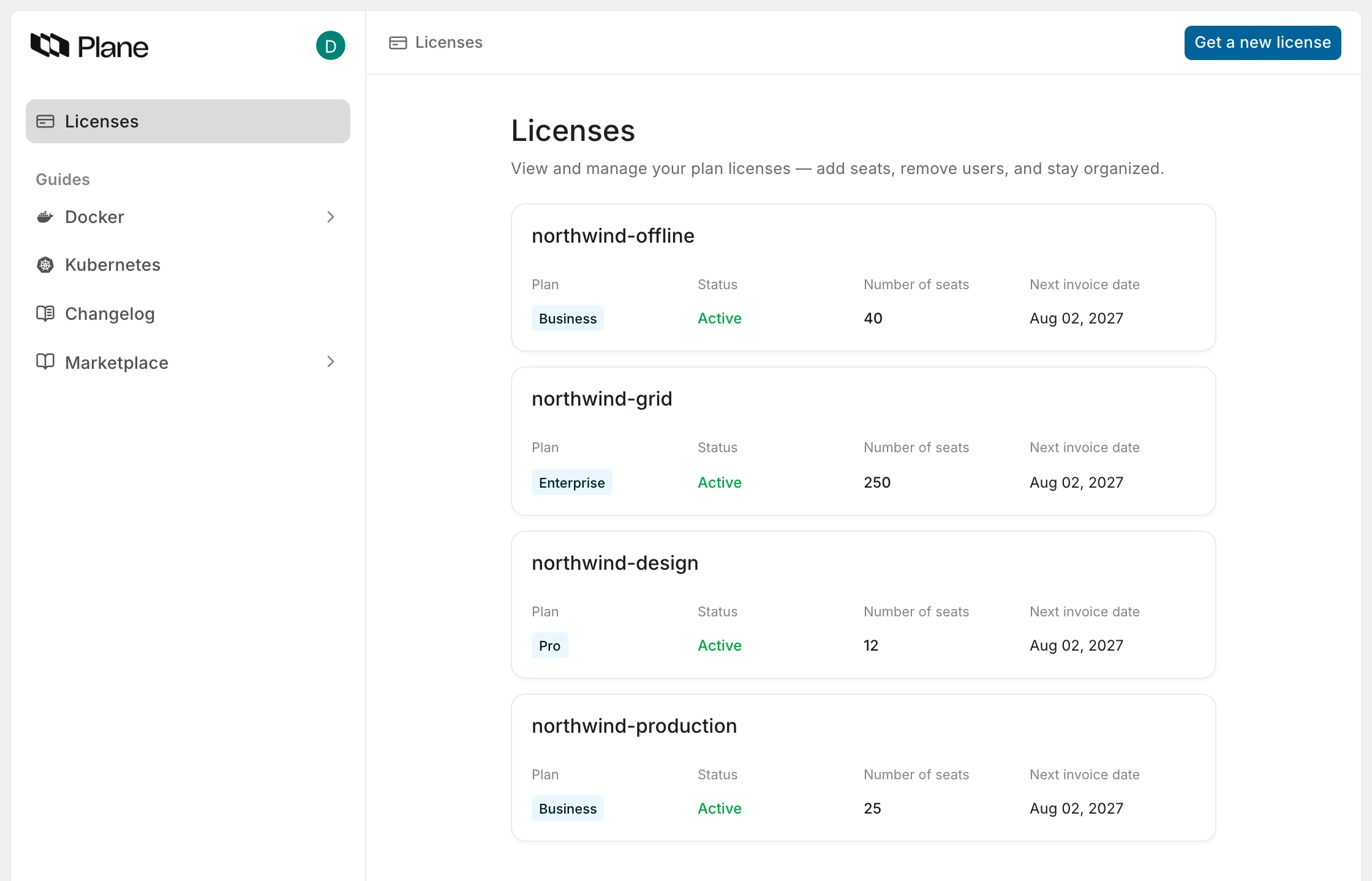
Open the license you want to use, then copy the License Key.
TIP
No license here yet, or need another one? Use Get a new license to buy more seats or another plan. Self-hosted checkout starts at 10 seats.
In your Plane app, go to Workspace settings → Billing and plans.


Click Activate this workspace.
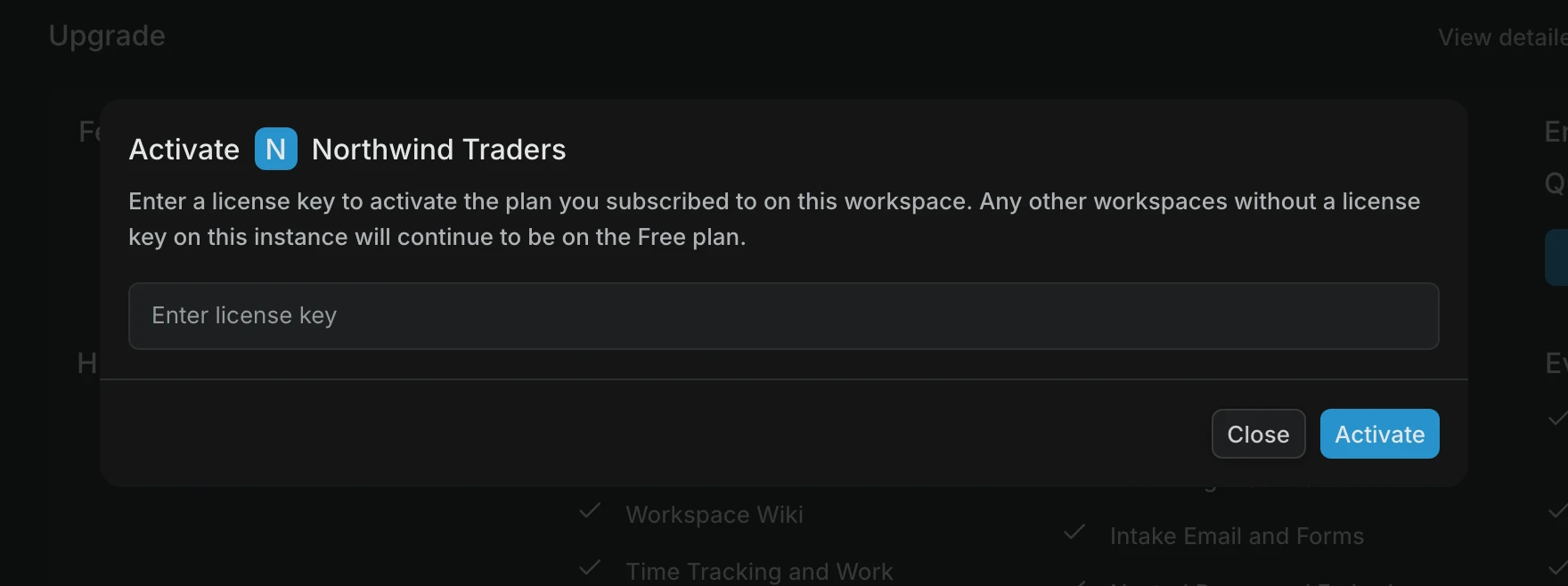
Paste the key into Enter license key, then click Activate.
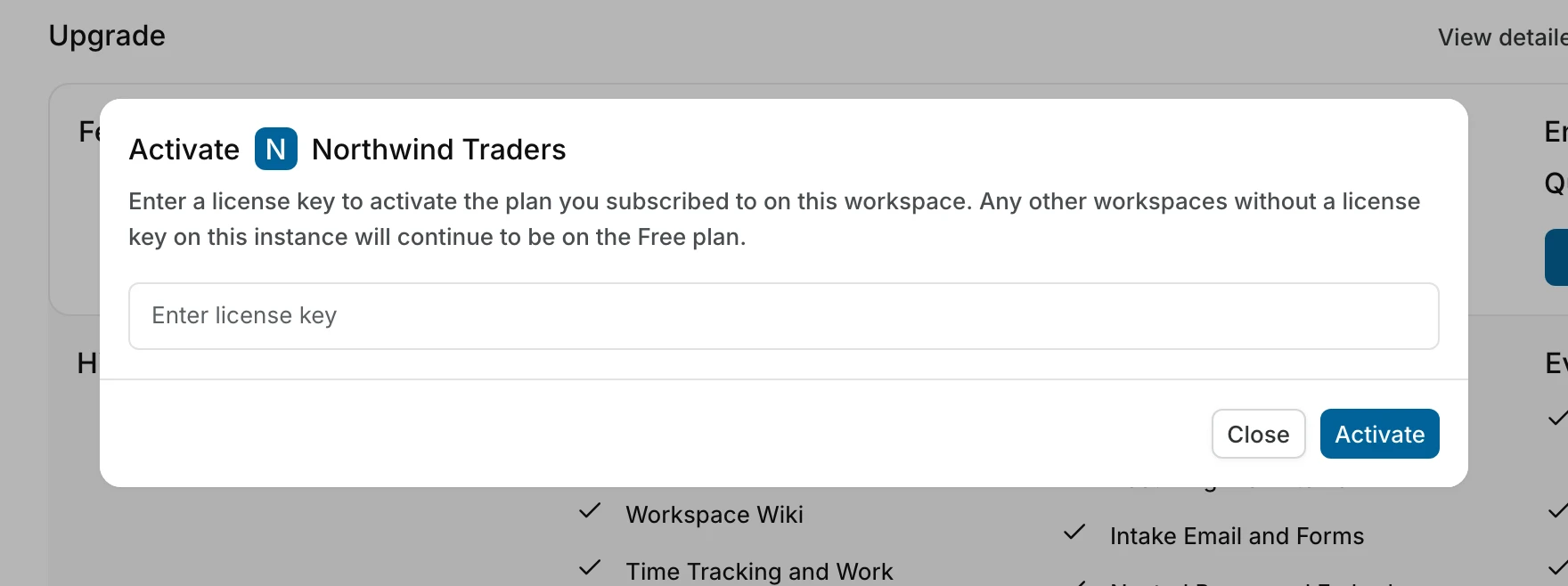
Wait for the confirmation. Billing and plans now shows your plan, your total seats, how many are unused, and your next invoice date.
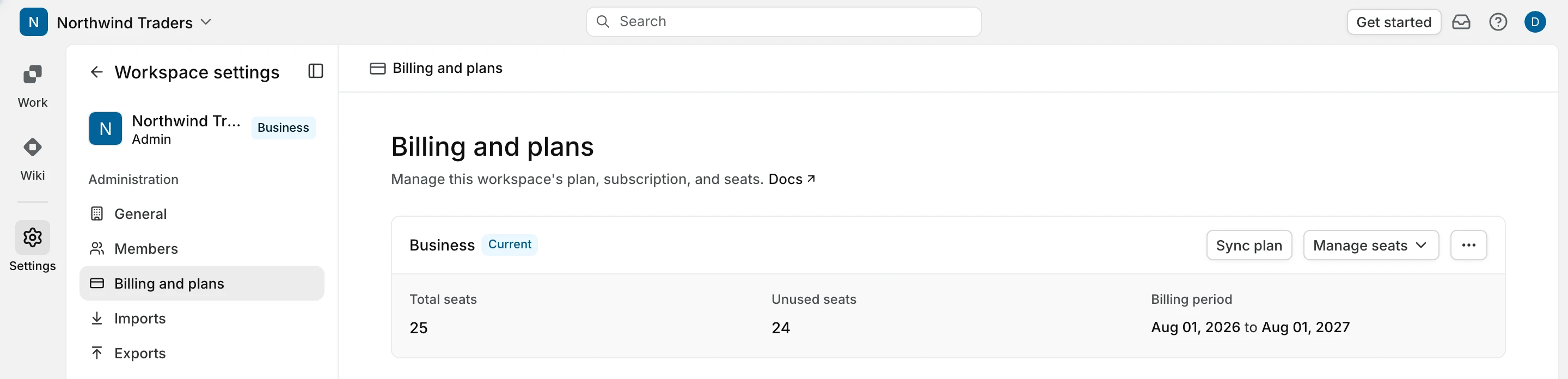
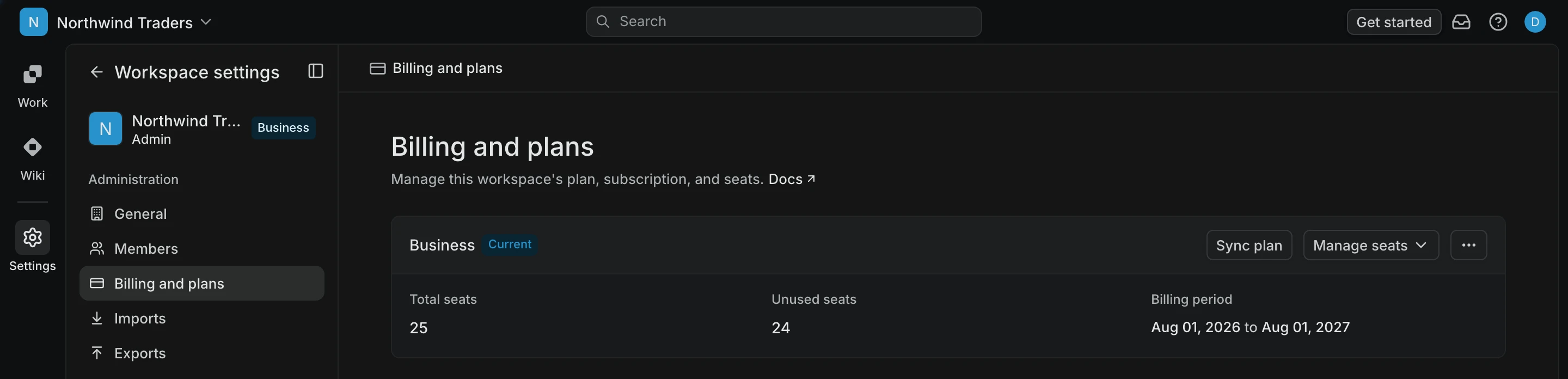
That workspace is now on your paid plan. Paid features appear as soon as the page reloads.
What happens next
Day-to-day changes live in Manage your license: pulling in a renewal or plan change with Sync plan, adding and removing seats, and releasing the key when you move servers.
Activate a second workspace
Each workspace needs its own key. Buy another license in the Prime portal, then repeat the steps above on the second workspace. One key cannot cover two workspaces, and activating it on a second one returns License already active for another workspace.
Delink license key
A key is tied to one workspace on one instance. Releasing it so you can use it elsewhere is called delinking, and you can do it from the app or from the Prime portal.
For the full procedure, including what to do when you can no longer reach the instance, see Delink a license key.
Troubleshoot
- License errors, organized by the message you see.